

Claude Code + Jupyter Notebooks Finally Work Well
There's a widespread misconception that Claude Code doesn't work well with Jupyter. That was true initially, but two things have come into play:
- NotebookEdit
Claude Code's built-in notebook tool. Zero setup, handy for quick .ipynb edits.
- Jupyter MCP server
a popular open-source project with full support for editing and executing cells, reading outputs, and running code directly on the IPython kernel.
This post covers both, but our recommendation is to use the Jupyter MCP server. It's 10 minutes of additional configuration but provides much more powerful capabilities.
If you'd rather stay inside the JupyterLab UI, jupyter-ai and notebook-intelligence offer in-notebook chat.
This post focuses on Claude Code (the CLI). The same MCP setup works with Claude Desktop.
Jupyter MCP Server
There’s a popular, open source Jupyter MCP Server built by Datalayer. Once registered with Claude Code, it exposes the notebook file and the running Jupyter kernel to Claude.
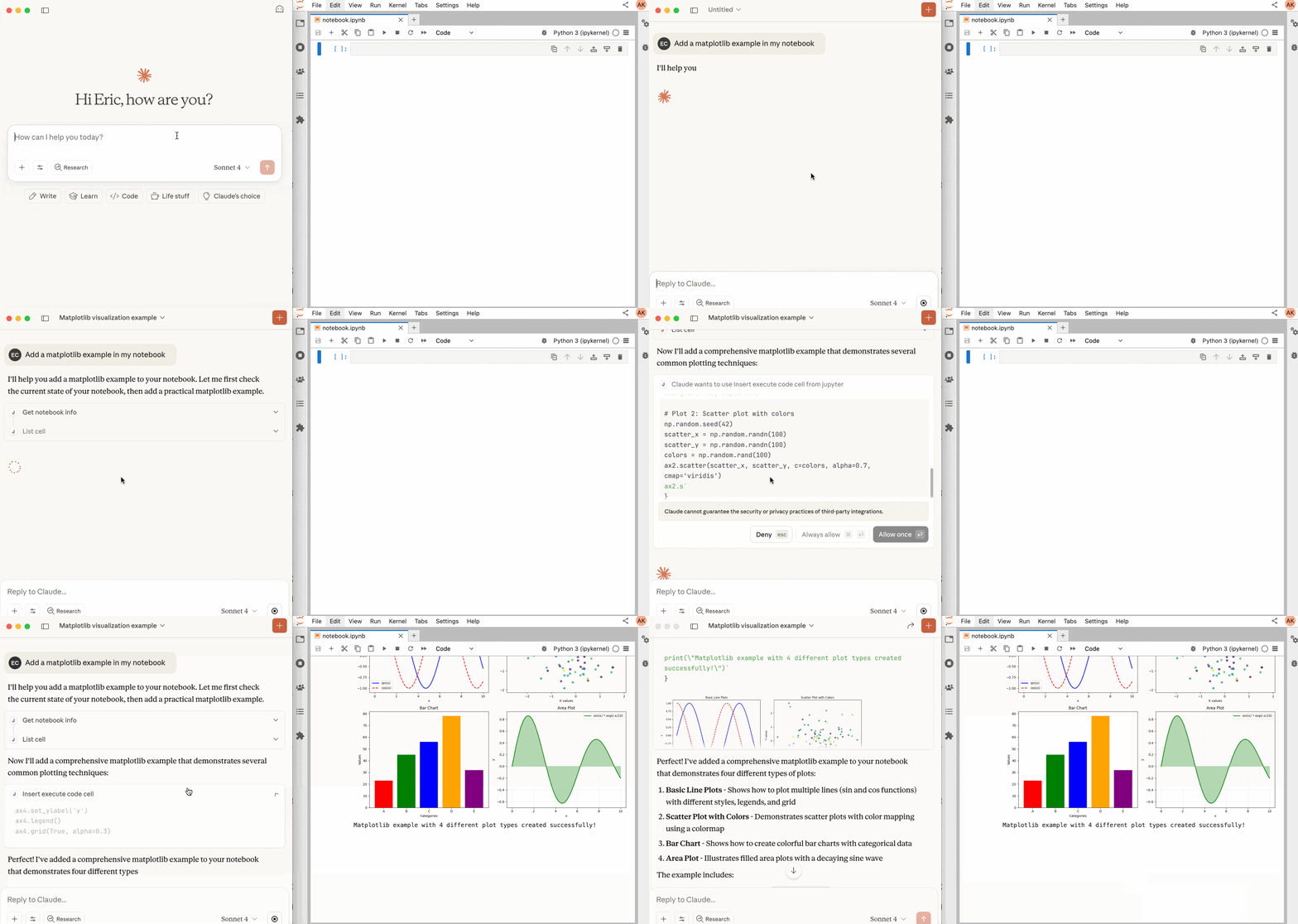
Claude Code can now edit the notebook, execute cells, read outputs, and run code directly on the kernel. Example workflow: you ask Claude to build a data analysis in a notebook. Claude creates the notebook, runs it top-to-bottom, hits import errors, pip install the missing packages into the running kernel, re-runs the notebook, fixes the next error and so on without any human intervention.
The biggest benefit of Jupyter MCP integration is full IPython kernel access. This enables agentic workflow: Claude can self-evaluate its code, fix errors in a continuous loop until everything is working as expected. No human intervention required.
Installation
Here are the actual installation steps for Jupyter MCP Server. I am just going to mention some of the gotchas below:
- Install Jupyter MCP a fresh venv - one of the dependencies (datalayer_pycrdt) is a hard replacement for upstream pycrdt, and you don't want it clobbering other projects.
- Understand MCP scopes. Easiest is to register the MCP with User scope so it's available to all the projects on your machine
> claude mcp add jupyter \
    --scope user \
    --env JUPYTER_URL=http://localhost:8888 \
    --env JUPYTER_TOKEN=MY_TOKEN \
    --env ALLOW_IMG_OUTPUT=true \
    -- uvx jupyter-mcp-server@latest
- Verify your MCP installation:
> claude mcp list
...
...
jupyter: uvx jupyter-mcp-server@latest - ✓ Connected   # <- VERIFY THIS LINE
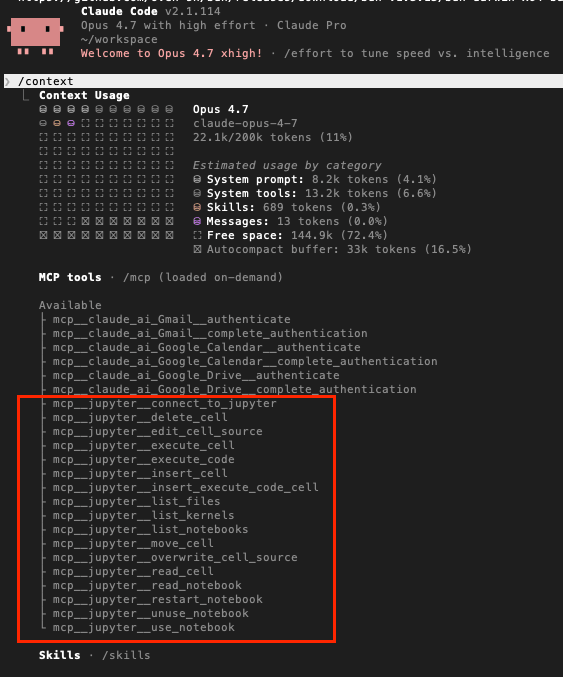
- Start Claude Code and verify mcp with /context as below:
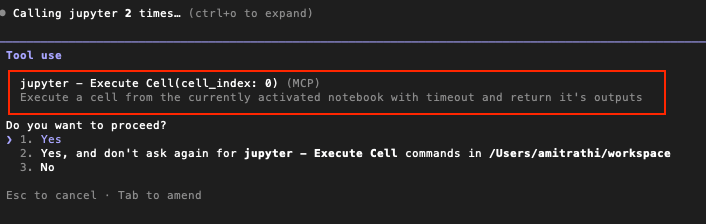
- Now ask Claude to do any normal notebook operation e.g. edit a cell, execute the notebook etc.
- If you face any installation issues, just ask Claude Code to sort it out for you.
Once you reach the above stage, you can hand off large notebook work to AI. Claude will write markdown & code cells, execute everything, read and fix errors in a loop until everything works seamlessly. Now you have a powerful agent at your disposal.
CLAUDE.md for Notebook Projects
After installing Jupyter MCP, copy-paste the following instructions into a CLAUDE.md file at the root of all your Jupyter Notebook repositories. Claude Code automatically reads this file whenever it's invoked there, and applies the rules to all Jupyter work.
## Rules for Claude when working with Jupyter notebooks

### Tool preference
- Use the Jupyter MCP for all `.ipynb` operations — read, edit, insert, delete, execute.
- Do not use your built-in `NotebookEdit` tool; it writes source as a single JSON string, which ruins standard Jupyter formatting.

### Outputs
- Never print secrets, API keys, tokens, or passwords into cell output.
- Large outputs consume tokens and fill up your context window. Prefer summaries (`.head()`, `.shape`) over dumping full DataFrames.

### Execution
- When installing packages, use `%pip install` inside the notebook (not `!pip install`) so packages install into the running kernel.
- Execute cells to verify they work. Do not assume the code is correct.
- If a cell errors, read the actual traceback before attempting a fix. Do not guess.

### State and reproducibility
- Jupyter kernels are stateful. A notebook that runs top-to-bottom after "Restart & Run All" is the only notebook that works — verify this before declaring a task done.

### Data safety
- Do not modify or delete raw data files. Write derived data to a separate path.
NotebookEdit
Claude Code has a built-in notebook tool: NotebookEdit. It can edit, insert, or delete notebook cells deterministically, so no risk of malformed .ipynb JSON. But it has two problems:
Diff-unfriendly formatting
NotebookEdit writes a cell's source as a single JSON string (with \n literals for newlines) rather than the standard list-of-strings formatting Jupyter and JupyterLab use.
Every edit shows up in git diff as a whole-cell rewrite. Worse, the moment you edit and save the cell in JupyterLab, it reverts the formatting back to list-of-strings (as expected). This causes unnecessary noisy diffs, and makes it impossible to freely mix Claude Code and manual editing via JupyterLab.
We’ve opened an issue with the Claude Code team. Until it’s resolved, best to avoid NotebookEdit and directly use the Jupyter MCP Server instead.
No cell execution
NotebookEdit is fine for quick, one-off edits, but without kernel access, it can't support the real workflow: writing code, running it, inspecting outputs, fixing errors. For that, you need the Jupyter MCP Server.
Summary
- Skip NotebookEdit. Claude's built-in tool produces noisy git diffs and can't execute cells.
- Use the Jupyter MCP Server instead. It gives Claude Code full kernel access: edit, run, debug in a self-correcting loop.
- Drop a CLAUDE.md into every notebook project. It enforces the conventions that keep Claude's notebook work clean, reproducible, and safe.
Happy Hacking!
------------------------------------------------------------------
Claude writes notebooks. ReviewNB lets humans review them. Trusted by thousands of teams, including Apple, Airbnb, Spotify, and NASA JPL.